> ## Documentation Index
> Fetch the complete documentation index at: https://docs.trysight.ai/llms.txt
> Use this file to discover all available pages before exploring further.
# Outreach Email Setup
> End-to-end setup for the Outreach Agent: register a dedicated outreach domain, create a personal mailbox, authenticate with Mailgun, configure inbox setup, and forward replies back to Sight AI.
## Overview
The Outreach Agent sends real outreach mail on your behalf. Setting it up cleanly is what protects the deliverability of every other email your business sends — receipts, password resets, newsletters, customer support — and what lets recipients reply to a real person at your team rather than a Sight AI relay address.
The agent does two jobs, and they have different domain needs:
* **Cold outreach** (the **Outreach** tab) — proactively pitching prospects who've never heard from you. This is the risky one for deliverability, so it belongs on a **dedicated domain, never your main brand domain.** It's the same playbook [lemlist](https://lemlist.com) and [Instantly](https://instantly.ai) drill into every user: isolate cold sending so it can't drag your primary domain down.
* **Reply handling** (the **Agent** tab) — answering people who emailed *you* first: forwarded cold pitches and inbound replies. This is warm, expected mail, so your **existing main domain is perfectly fine** here. Nobody flags a reply to a conversation they started.
The setup is a positioned five-step flow that touches your **domain registrar**, your **email provider**, and **Sight AI**:
1. **Register a fresh, dedicated domain** just for outreach and create a personal mailbox on it (we recommend Google Workspace).
2. **Add Mailgun's DNS records** to your domain so we can send authenticated mail.
3. **Verify the domain** in Sight AI (DNS propagation usually takes 5–30 minutes, occasionally a few hours).
4. **Configure inbox setup** in Sight AI so replies land in your real mailbox instead of the Sight AI Inbox.
5. **Forward a copy** of every incoming reply back to Sight AI so the agent can triage and follow up.
Plan for \~30 minutes of hands-on work plus some DNS propagation wait time. You won't need to babysit the wait — start it once and come back when DNS resolves.
This is a one-time setup per site. Once it's done, the agent sends and receives indefinitely with no further configuration.
## Step 1 · Register a new dedicated domain (and create a mailbox)
The first and most important rule: **don't reuse your main brand domain**.
Cold outreach generates bounces, spam complaints, and unsubscribes at rates your transactional and customer-facing mail never does. Those signals follow the domain — a few weeks of cold sending can quietly poison deliverability for your password resets, receipts, newsletters, and customer support replies.
The pattern we recommend is **same name, different TLD** — a fresh registration that reads like your brand but lives on its own DNS island.
| Real brand site | Recommended outreach domain | Example mailbox |
| --------------- | ----------------------------------------- | ---------------------------- |
| `trysight.ai` | `trysightai.com` | `john.smith@trysightai.com` |
| `acme.io` | `acmeio.com` (or `acme.com` if available) | `john.smith@acmeio.com` |
| `widget.app` | `widgetapp.com` | `john.smith@widgetapp.com` |
| `northstar.co` | `northstarco.com` | `john.smith@northstarco.com` |
Avoid `-outreach`, `-mail`, or similar suffixes — they read as a marketing domain to recipients and undermine the personal-feeling From line we're trying to build. Register the domain at any reputable registrar (GoDaddy, Cloudflare, Namecheap, Squarespace Domains, Hover, Name.com — they're all fine).
Do not reuse your primary product domain (or a subdomain of it) as the outbound domain, even if it already has SPF, DKIM, and DMARC configured. Cold outreach generates bounces, spam complaints, and unsubscribes at rates your transactional mail never does, and those signals follow the domain. A dedicated outbound domain is the only way to keep one from poisoning the other.
**The exception — warm reply handling.** This dedicated-domain rule is about *cold outreach*. If you're only using the agent to reply to people who emailed you first — forwarded pitches and inbound replies handled on the **Agent** tab, with the **Outreach** tab left off — that's warm, expected mail, and your existing main domain is perfectly fine. The reputation risk comes from *cold* sending, not from answering someone who already reached out. One caveat: the agent sends *everything* from a single assigned domain, so if you'll run cold outreach at all, make that one domain the dedicated one.
### Set up email on the new domain (Google Workspace recommended)
Once the domain is registered, set up email on it. **Google Workspace (\$6/user/month) is what we recommend** — it's the most reliable, gives you a real Gmail-style inbox UI, and the forwarding rule that closes the loop in Step 5 is a single setting.
Other options that work fine:
* **Microsoft 365** — solid alternative; the forwarding setup is a couple more clicks.
* **Cloudflare Email Routing** (free) — forward-only, no inbox UI of its own. Use this if you only need a forwarding address and have a separate inbox to forward into.
* **Zoho Mail** (free tier available) — solid budget option.
* **Fastmail** — paid, well-regarded for deliverability.
Whichever you pick, **create a real personal mailbox using a real first name** — `john.smith@trysightai.com`, not `outreach@trysightai.com` or `hello@trysightai.com`. Cold outreach replies far better when the From line reads as a person rather than a sales tool. This same mailbox becomes your Reply-To in Step 4 and the source of the forwarding rule in Step 5, so set it up once and you'll reuse it across the rest of the flow.
Don't reuse your everyday inbox for the outreach mailbox. The forwarding rule in Step 5 sends a copy of *every* incoming message to Sight AI — non-outreach mail is silently discarded, but giving Sight AI access to your daily inbox is unnecessary and surfaces a privacy footprint you don't need.
## Step 2 · Add Mailgun's DNS records
In Sight AI, open the **Inbox**, click **Settings** in the header, and open the **Domain** tab to add the dedicated outreach domain you just registered. (You can keep more than one domain in the pool; the agent sends from the single domain you **Assign**.) Sight AI provisions it in Mailgun and surfaces a table of DNS records you'll paste into your domain registrar:
| Record | Purpose | Who provisions it |
| -------------------------------------------- | ---------------------------------------------------------------------------------------------------------------- | ------------------------------------------------------------------------------------- |
| **SPF** (TXT) | Declares Mailgun as an allowed sender for your domain. | Sight AI generates the exact record for you. |
| **DKIM** (TXT on `smtp._domainkey.`) | Cryptographically signs outgoing messages so receivers can verify they weren't tampered with. | Sight AI generates the exact record for you. |
| **Tracking CNAME** (`email.`) | Powers click and open tracking on outbound mail. | Sight AI generates the exact record for you. |
| **DMARC** (TXT on `_dmarc.`) | Tells receivers what to do when a message fails SPF or DKIM, and where to send aggregate authentication reports. | **You add this one yourself** — Sight AI surfaces a recommended starter you can copy. |
Each row in the dashboard has a copy button so you can paste the values into your registrar verbatim. The starter DMARC record looks like:
```text theme={null}
Type: TXT
Name: _dmarc.
Value: v=DMARC1; p=none; rua=mailto:postmaster@
```
`p=none` is **monitor-only mode** — no legitimate mail is rejected while you're still dialling things in. Tighten it to `p=quarantine` or `p=reject` once your DMARC reports confirm everything legitimate is passing alignment.
Mailgun only provisions SPF and DKIM. **DMARC is not generated, not verified, and not enforced by Mailgun**, but every major inbox checks it — skipping it is the single most common reason cold outreach from a brand-new domain ends up in spam.
### Add the records at your registrar
The fields are universal across registrars even if the UI labels differ. Pick yours:
#### GoDaddy
1. Sign in and go to **My Products → Domains**, then click **DNS** next to your outreach domain.
2. For each Sight AI record, click **Add New Record**.
3. **Type** = TXT or CNAME (match the row in Sight AI).
4. **Name** = the host part only. GoDaddy splits the host from the domain — for `smtp._domainkey.yourdomain.com` enter `smtp._domainkey`; for the apex SPF record enter `@`; for `_dmarc.yourdomain.com` enter `_dmarc`; for the tracking CNAME `email.yourdomain.com` enter `email`.
5. **Value** = paste from Sight AI exactly. Don't add quotes — GoDaddy adds them automatically for TXT records.
6. **TTL** = 1 hour (or default).
7. **Save**.
GoDaddy DNS changes typically propagate in 5–10 minutes.
#### Cloudflare
1. From the Cloudflare dashboard, open the zone for your outreach domain.
2. Go to **DNS → Records → Add record**.
3. For each Sight AI record:
* **Type** = TXT or CNAME.
* **Name** = the subdomain part. Cloudflare auto-strips the apex — for `smtp._domainkey.yourdomain.com` enter `smtp._domainkey`; for the apex SPF, enter `@`.
* **Content / Target** = paste from Sight AI verbatim.
* **Proxy status** = **DNS only** (the grey cloud, not the orange one). Mailgun's records must not be proxied.
* **TTL** = Auto.
4. **Save**.
Cloudflare DNS changes are typically live within seconds.
#### Namecheap
1. Sign in and go to **Domain List**, then click **Manage** next to your outreach domain.
2. Open the **Advanced DNS** tab.
3. For each Sight AI record, click **Add New Record**.
4. **Type** = TXT Record or CNAME Record.
5. **Host** = the host part (e.g. `smtp._domainkey`, `email`, `_dmarc`, or `@` for apex SPF).
6. **Value** = paste from Sight AI.
7. **TTL** = Automatic.
8. Click the green checkmark to save each row.
Namecheap typically propagates in 30 minutes.
#### Google Domains / Squarespace Domains
(Google Domains migrated to Squarespace in mid-2024 — same UI underneath.)
1. Sign in to Squarespace Domains and select your outreach domain.
2. Go to **DNS → Custom records**.
3. Click **Add record** for each row from Sight AI.
4. Match the type, host, and value exactly. For host, use the subdomain part only (`smtp._domainkey`, `email`, `_dmarc`, or `@`).
5. **Save**.
Propagation is usually under 30 minutes.
#### Other providers (Hover, Name.com, Bluehost, DreamHost, AWS Route 53, etc.)
The fields map cleanly across registrars even when the labels differ:
* **Type** — match what Sight AI shows (TXT or CNAME).
* **Name / Host / Hostname** — the subdomain part. For `smtp._domainkey.` use `smtp._domainkey`; for the apex SPF use `@`; for the tracking CNAME use `email`; for DMARC use `_dmarc`.
* **Value / Target / Points to / Content** — copy from Sight AI verbatim.
* **TTL** — leave default.
If your registrar requires a fully qualified name, append your domain to the host (e.g. `smtp._domainkey.trysightai.com`); otherwise use the host part only.
## Step 3 · Verify the domain in Sight AI
Once the records are in your registrar, head back to **Inbox → Settings → Domain** and click **Verify DNS**. Mailgun re-checks DNS and flips each record from `pending` to `ok`. Once it verifies, click **Assign** to make it the domain the agent sends from (a freshly verified domain can be auto-assigned for you).
**Heads up on timing:** DNS propagation usually takes **5–30 minutes**, but it can take **a few hours** depending on your registrar (and longer still if you're updating records that previously had a long TTL). If verification doesn't pass on the first click, give it 30 minutes and try again — there's nothing to babysit. Once all records flip to **Valid**, the domain is verified and you can move on to Step 4.
The agent **refuses to send** until SPF, DKIM, and the tracking CNAME all resolve, so getting this step done is what unlocks everything downstream. DMARC isn't required for verification but is strongly recommended before running real campaigns.
## Step 4 · Configure inbox setup in Sight AI
With the sending domain verified and assigned, open the **Inbox** tab in **Inbox → Settings** (the inbox setup card). This is where you tell Sight AI which mailbox you want recipients to reply to, and where you'll wire the relay back to the agent in Step 5.
The card walks through three substeps in order — the in-app instructions are intentionally close to what you see here:
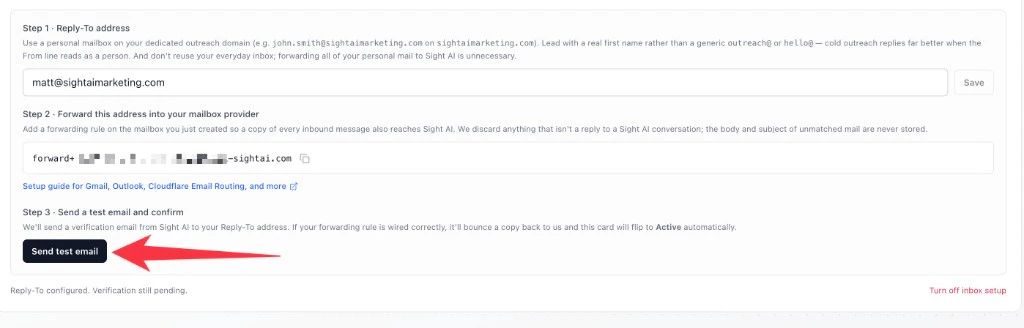 ### Step 1 in the card · Reply-To address
Paste the personal mailbox you created in Step 1 (e.g. `john.smith@trysightai.com`) into the Reply-To field and click **Save**. Use the same mailbox you set up in Step 1 — that single address is your Reply-To, your From line, *and* the source of the forwarding rule in Step 5, so reusing it keeps everything pointed at one place.
The agent doesn't go live with this Reply-To yet — it'll keep using the platform Reply-To until verification succeeds in Step 3 of the card so an in-flight setup never silently drops a reply.
### Step 2 in the card · Forwarding address
Sight AI displays a forwarding address that looks like `forward+ABC123XYZ@mail-sightai.com`. **Copy it** — you'll paste it into your mailbox provider as part of Step 5 below.
### Step 3 in the card · Send test email
Hold off on clicking **Send test email** until you've finished Step 5 below. Once your forwarding rule is wired up and confirmed, click it and the card will flip to **Active** automatically as soon as the forwarded copy returns to Sight AI.
## Step 5 · Set up email forwarding from your mailbox
This is the rule that closes the loop: every incoming message in your outreach mailbox gets forwarded to the Sight AI address you copied in Step 4. Replies still land in your own inbox, *and* the agent sees a copy.
The setup steps differ by mail provider — pick yours.
### Gmail / Google Workspace
1. Sign in to the dedicated outreach mailbox (e.g. `john.smith@trysightai.com`) in **Gmail**, click the gear icon → **See all settings**.
2. Open the **Forwarding and POP/IMAP** tab.
3. Click **Add a forwarding address** and paste the Sight AI forwarding address from the Inbox setup card.
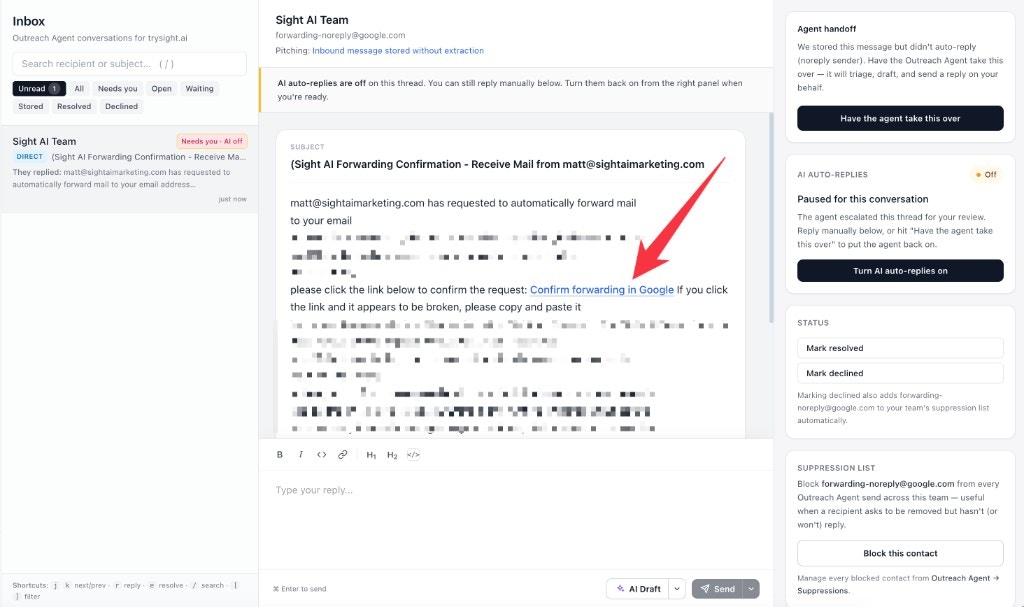
4. Gmail sends a confirmation email to the Sight AI forwarding address. Sight AI receives it and surfaces it as a new conversation in your **Inbox** tab — open it and click **Confirm forwarding in Google** to authorize the forward:
### Step 1 in the card · Reply-To address
Paste the personal mailbox you created in Step 1 (e.g. `john.smith@trysightai.com`) into the Reply-To field and click **Save**. Use the same mailbox you set up in Step 1 — that single address is your Reply-To, your From line, *and* the source of the forwarding rule in Step 5, so reusing it keeps everything pointed at one place.
The agent doesn't go live with this Reply-To yet — it'll keep using the platform Reply-To until verification succeeds in Step 3 of the card so an in-flight setup never silently drops a reply.
### Step 2 in the card · Forwarding address
Sight AI displays a forwarding address that looks like `forward+ABC123XYZ@mail-sightai.com`. **Copy it** — you'll paste it into your mailbox provider as part of Step 5 below.
### Step 3 in the card · Send test email
Hold off on clicking **Send test email** until you've finished Step 5 below. Once your forwarding rule is wired up and confirmed, click it and the card will flip to **Active** automatically as soon as the forwarded copy returns to Sight AI.
## Step 5 · Set up email forwarding from your mailbox
This is the rule that closes the loop: every incoming message in your outreach mailbox gets forwarded to the Sight AI address you copied in Step 4. Replies still land in your own inbox, *and* the agent sees a copy.
The setup steps differ by mail provider — pick yours.
### Gmail / Google Workspace
1. Sign in to the dedicated outreach mailbox (e.g. `john.smith@trysightai.com`) in **Gmail**, click the gear icon → **See all settings**.
2. Open the **Forwarding and POP/IMAP** tab.
3. Click **Add a forwarding address** and paste the Sight AI forwarding address from the Inbox setup card.
4. Gmail sends a confirmation email to the Sight AI forwarding address. Sight AI receives it and surfaces it as a new conversation in your **Inbox** tab — open it and click **Confirm forwarding in Google** to authorize the forward:
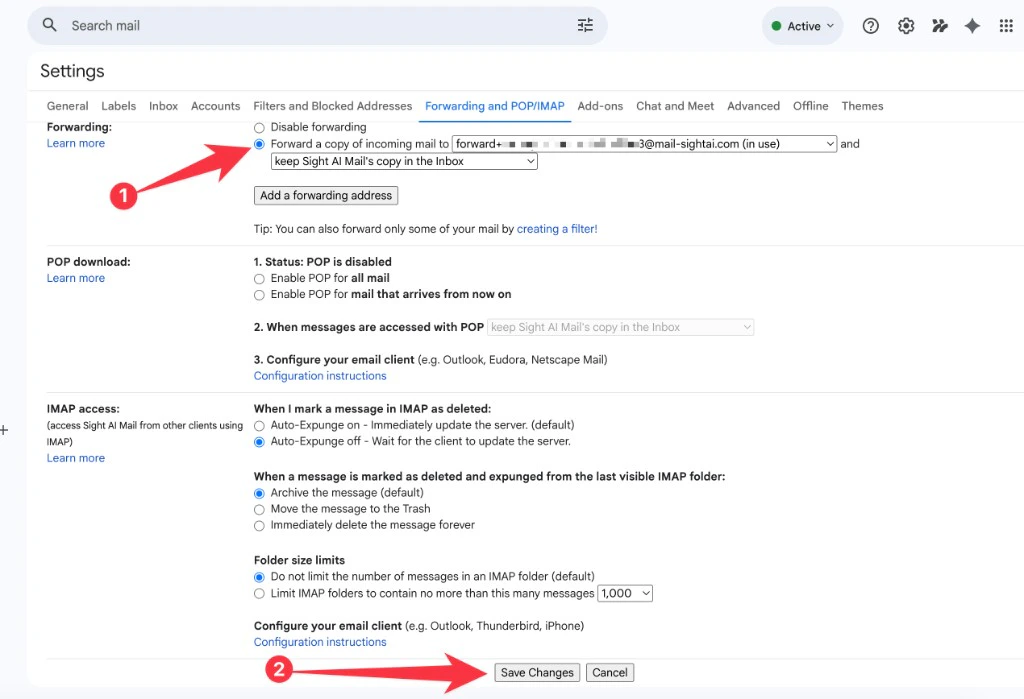
 5. Back in Gmail's **Forwarding and POP/IMAP** tab, choose **Forward a copy of incoming mail to** and select your Sight AI address. In the second dropdown, pick the **keep \[your mailbox]'s copy in the Inbox** option (Gmail substitutes your mailbox's display name into the label) so your original mail stays intact, then click **Save Changes**:
 6. Now jump back to the **Inbox setup** card in Sight AI and click **Send test email**. The probe arrives in your outreach mailbox, the forwarding rule sends a copy back to Sight AI, and the card flips to **Active** automatically.
Make sure you pick the **keep \[your mailbox]'s copy in the Inbox** option in Gmail (or the equivalent in your provider) — *not* archive, delete, or mark-as-read. The forward should be a copy, not a redirect, otherwise your replies disappear from your own inbox.
### Microsoft 365 / Outlook
1. Sign in to the dedicated outreach mailbox in Outlook on the web and click the gear icon.
2. Go to **Mail → Forwarding**.
3. Check **Enable forwarding** and paste the Sight AI forwarding address from the Inbox setup card.
4. Make sure **Keep a copy of forwarded messages** is checked.
5. Click **Save**.
6. Back in Sight AI, click **Send test email** in the Inbox setup card.
### Cloudflare Email Routing (no mailbox required)
If your dedicated outreach domain is on Cloudflare's free Email Routing:
1. In Cloudflare, open the zone for your outreach domain (e.g. `trysightai.com`, **not** your main brand domain) and go to **Email → Email Routing**.
2. Under **Destination addresses**, add the Sight AI forwarding address from the Inbox setup card. Cloudflare sends a verification link — open the resulting conversation in your Sight AI **Inbox** tab and click through to confirm.
3. Under **Custom addresses**, create a route: **Custom address** = your outreach mailbox address (e.g. `john.smith@trysightai.com`) → **Action** = `Send to` → the Sight AI forwarding address.
4. Back in Sight AI, click **Send test email** in the Inbox setup card.
Cloudflare Email Routing is the easiest option if you don't want to pay for a Google Workspace or Microsoft 365 seat — Sight AI handles all sending through your verified outbound domain anyway, so the mailbox is purely for receiving and forwarding replies. If you want to be able to log in and read those replies in a real inbox UI, point Cloudflare's forward at any existing inbox (your personal Gmail, your team's shared inbox, etc.).
### Zoho, Fastmail, cPanel, and other providers
Most providers expose a basic forwarder under **Email Forwarders**, **Aliases**, or similar:
1. **Source:** your outreach mailbox (e.g. `john.smith@trysightai.com`)
2. **Destination:** the Sight AI forwarding address from the Inbox setup card
3. Save, confirm any verification email Sight AI surfaces in your Inbox, then click **Send test email** in the Inbox setup card.
If your provider supports **SRS (Sender Rewriting Scheme)**, leave it on — it keeps the original sender's domain intact for SPF on the forward. Most modern providers do this automatically.
## How replies are detected
Every outbound email the agent sends carries a unique `Message-Id` header. When someone replies, the reply carries an `In-Reply-To` header with that same value. The agent uses this header match to know *which* conversation a forwarded email belongs to.
When inbox setup is **active**, matched replies are threaded to the existing Sight AI conversation first. Mail that doesn't match an existing conversation still follows the [Email Forwarding](/ai-visibility/outreach-email-forwarding) intake flow: it can land as a new Inbox thread, and the **Auto-handle forwarded and inbound emails** setting controls whether the agent triages it automatically or waits for you.
## What happens once everything is Active
* **Outbound mail** uses your Reply-To address. Recipients see `john.smith@trysightai.com` (or whichever personal mailbox you chose) and have no way to know Sight AI is in the loop.
* **Replies** land in your own mailbox like normal email.
* **The agent** sees a copy of those replies via the forward and triages them: drafts a follow-up if appropriate, marks the thread resolved, or flags it for your attention. Everything still appears in the **Inbox** tab.
* **New forwarded or direct inbound mail** that isn't a reply can create a new Inbox thread. If auto-handle is on, the agent triages it before deciding whether to reply; if auto-handle is off, it waits for your review.
## Privacy and security
* **Matched replies are resolved by headers first.** We read `In-Reply-To` and `References` to identify Sight AI conversations before treating an email as a new inbound thread.
* **Sender verification.** When a forwarded message matches an outbound-initiated conversation, we check that the sender matches the contact enrolled in that conversation. Replies from unrelated addresses are dropped.
* **Per-site forwarding address.** Each site has its own rotatable forwarding token, so a leaked address never grants access to other sites or other workspaces.
* **Team-scoped matching.** Forwarded replies can never interact with conversations from other teams.
If you suspect your forwarding address has leaked, click **Rotate** in the **Forward emails to your agent** card (under **Inbox → Settings → Inbox**). The old address stops accepting mail immediately — update your forwarding rule to point at the new address afterwards.
## Troubleshooting
**The Inbox setup card doesn't flip to Active after I click Send test email.**
Wait a couple of minutes — the probe → forward → relay round-trip is usually under 30 seconds but can take a minute or two on cold mailboxes. Then check, in order:
1. **Did the test email actually arrive in your outreach mailbox?** Look in Spam or Promotions too — first emails to a new domain occasionally land there. If it's not there at all, your sending domain probably hasn't fully verified yet (re-check Step 3).
2. **Did your forwarding rule fire?** In Gmail, the Forwarding and POP/IMAP page shows your active forward. In Outlook, check Mail → Forwarding. In Cloudflare, check Email → Email Routing → Routes.
3. **Did you confirm the forward?** Gmail and Cloudflare both require a one-time confirmation step (Step 5 above). If you skipped it, the forwarding rule is configured but inactive.
You can re-click **Send test email** as many times as you need. Each click invalidates the previous probe and starts fresh.
**DNS verification keeps failing.**
DNS propagation usually takes 5–30 minutes but can occasionally take a few hours, especially if you previously had stale records on the domain with long TTLs. Wait 30 minutes and click **Verify DNS** again. If it still fails after a few hours:
* Confirm the records are exactly what Sight AI shows — case-sensitive, no trailing spaces, no added quotes.
* For TXT records, check that your registrar didn't double-quote the value (Cloudflare and Namecheap both add quotes automatically; pasting them in yourself produces `""v=spf1 ..."`).
* For CNAME records, confirm Cloudflare's proxy is **off** (grey cloud, not orange).
**Replies are landing in my mailbox but the agent isn't replying.**
That can mean either (a) the agent's auto-reply behaviour is paused for that thread (check the right rail in the Inbox), or (b) the forwarding rule isn't actually copying messages back to Sight AI. Send a test reply to one of your own outbound emails and check whether it shows up in the Sight AI Inbox tab within a minute. If it doesn't, re-walk Step 5.
## FAQ
Only if you don't set up inbox setup. With a verified Reply-To configured, recipients see your real personal address (e.g. `john.smith@trysightai.com`) and have no way to know Sight AI is in the loop.
Outreach still sends and replies still arrive — they'll just show up in the Sight AI **Inbox** tab instead of your personal inbox. The agent triages and replies the same way.
Cold outreach generates bounces, spam complaints, and unsubscribes at rates your transactional and customer-facing mail never does. If you reuse your main brand domain for outreach, those signals follow the domain — and a few weeks of cold sending can quietly degrade deliverability for your password resets, receipts, newsletters, and customer support replies. A similar-looking outreach domain on a different TLD (e.g. `trysightai.com` if your main is `trysight.ai`) keeps prospects feeling like they're talking to your team while keeping the reputation hit isolated. This is the same approach [lemlist](https://lemlist.com) and [Instantly](https://instantly.ai) build their whole onboarding around: keep cold sending off your primary domain.
Yes. The dedicated-domain rule exists to protect you from *cold* sending. If you're only using the agent to reply to people who contacted you first — forwarded cold pitches and inbound replies on the **Agent** tab — that's warm, expected mail and your main domain is perfectly fine. The moment you turn on cold outreach (the **Outreach** tab), switch to a dedicated domain: the agent sends every email from one assigned domain, so once cold pitches are in the mix, that domain needs to be the dedicated one to keep your primary domain's reputation safe.
Cold mail replies far better when the From line reads as a person. A reply from `john.smith@trysightai.com` looks like a real person at Sight AI sent you a thoughtful note. A reply from `outreach@trysightai.com` reads as a sales tool — recipients pattern-match it against the dozens of cold mass emails they've already deleted today and your reply rate drops accordingly. Use a real personal name (yours or whoever the agent is "speaking as") for the local-part of both your From line and your Reply-To.
Use a dedicated personal mailbox on your dedicated outreach domain (e.g. `john.smith@trysightai.com`). The forwarding rule sends a copy of *every* incoming email to Sight AI. We discard everything that isn't a Sight AI reply, but you generally don't want a non-Sight AI service receiving copies of your daily mail. A separate mailbox on the separate outreach domain keeps the privacy surface area minimal.
No. Cloudflare Email Routing is free and lets you create `john.smith@trysightai.com` as a forward-only address — you don't need a paid mailbox seat at all. The downside is you can't *send* mail from that address through Cloudflare, but Sight AI handles all sending through your verified outbound domain anyway, so the mailbox is purely for receiving and forwarding replies. If you want to be able to log in and read those replies in a real inbox UI, point Cloudflare's forward at any existing inbox (your personal Gmail, your team's shared inbox, etc.). Google Workspace is what we recommend for most teams because the Gmail UI is excellent for actually reading and replying to threads, but Cloudflare is a perfectly valid free alternative.
Usually 5–30 minutes. Occasionally a few hours, especially if you previously had records on the domain with long TTLs. The dashboard shows per-record status when you click **Verify DNS**; there's nothing to babysit while DNS propagates — start the records, walk away, come back when you have time.
No. Emails are still sent through Sight AI's verified outbound domain. Inbox setup only changes how *replies* find their way back to the agent — not how outbound mail leaves.
First confirm the test email actually arrived in your Reply-To mailbox — sometimes the first email from a new domain lands in Spam. If it's there, your forwarding rule didn't fire. Re-check the rule's filter (some providers default to forwarding only mail matching specific addresses) and that you confirmed the forward (Gmail and Cloudflare both require a one-time confirmation click). You can click **Send test email** again to retry.
Direct mail without a matching `In-Reply-To` can still become a new Inbox thread through the forwarding intake path. Keep **Auto-handle forwarded and inbound emails** on if you want the agent to triage those messages automatically, or turn it off if you want direct inbound to wait for review.
Yes. Click **Remove** on the **Inbox setup** card (under **Inbox → Settings → Inbox**). The agent immediately reverts to its platform Reply-To and replies start landing in the Sight AI Inbox tab again.
Yes, if you forward new mail into your agent address or your Reply-To mailbox forwards a new direct inbound message. Matched replies are threaded first; unmatched authenticated mail can create a new Inbox thread, subject to daily caps and your auto-handle setting.
## Related
* [Outreach Inbox](/ai-visibility/outreach-inbox) — read, reply to, and triage every conversation, including replies routed back through your real mailbox.
* [Outreach Email Forwarding](/ai-visibility/outreach-email-forwarding) — turn forwarded *prospect* emails into new opportunities (this is a different feature; inbox setup handles *replies*).
* [Outreach Opportunities](/ai-visibility/outreach-opportunities) — the broader Outreach Agent surface.
* [Automations overview](/automations/overview) — how all the autonomous agents fit together.
6. Now jump back to the **Inbox setup** card in Sight AI and click **Send test email**. The probe arrives in your outreach mailbox, the forwarding rule sends a copy back to Sight AI, and the card flips to **Active** automatically.
Make sure you pick the **keep \[your mailbox]'s copy in the Inbox** option in Gmail (or the equivalent in your provider) — *not* archive, delete, or mark-as-read. The forward should be a copy, not a redirect, otherwise your replies disappear from your own inbox.
### Microsoft 365 / Outlook
1. Sign in to the dedicated outreach mailbox in Outlook on the web and click the gear icon.
2. Go to **Mail → Forwarding**.
3. Check **Enable forwarding** and paste the Sight AI forwarding address from the Inbox setup card.
4. Make sure **Keep a copy of forwarded messages** is checked.
5. Click **Save**.
6. Back in Sight AI, click **Send test email** in the Inbox setup card.
### Cloudflare Email Routing (no mailbox required)
If your dedicated outreach domain is on Cloudflare's free Email Routing:
1. In Cloudflare, open the zone for your outreach domain (e.g. `trysightai.com`, **not** your main brand domain) and go to **Email → Email Routing**.
2. Under **Destination addresses**, add the Sight AI forwarding address from the Inbox setup card. Cloudflare sends a verification link — open the resulting conversation in your Sight AI **Inbox** tab and click through to confirm.
3. Under **Custom addresses**, create a route: **Custom address** = your outreach mailbox address (e.g. `john.smith@trysightai.com`) → **Action** = `Send to` → the Sight AI forwarding address.
4. Back in Sight AI, click **Send test email** in the Inbox setup card.
Cloudflare Email Routing is the easiest option if you don't want to pay for a Google Workspace or Microsoft 365 seat — Sight AI handles all sending through your verified outbound domain anyway, so the mailbox is purely for receiving and forwarding replies. If you want to be able to log in and read those replies in a real inbox UI, point Cloudflare's forward at any existing inbox (your personal Gmail, your team's shared inbox, etc.).
### Zoho, Fastmail, cPanel, and other providers
Most providers expose a basic forwarder under **Email Forwarders**, **Aliases**, or similar:
1. **Source:** your outreach mailbox (e.g. `john.smith@trysightai.com`)
2. **Destination:** the Sight AI forwarding address from the Inbox setup card
3. Save, confirm any verification email Sight AI surfaces in your Inbox, then click **Send test email** in the Inbox setup card.
If your provider supports **SRS (Sender Rewriting Scheme)**, leave it on — it keeps the original sender's domain intact for SPF on the forward. Most modern providers do this automatically.
## How replies are detected
Every outbound email the agent sends carries a unique `Message-Id` header. When someone replies, the reply carries an `In-Reply-To` header with that same value. The agent uses this header match to know *which* conversation a forwarded email belongs to.
When inbox setup is **active**, matched replies are threaded to the existing Sight AI conversation first. Mail that doesn't match an existing conversation still follows the [Email Forwarding](/ai-visibility/outreach-email-forwarding) intake flow: it can land as a new Inbox thread, and the **Auto-handle forwarded and inbound emails** setting controls whether the agent triages it automatically or waits for you.
## What happens once everything is Active
* **Outbound mail** uses your Reply-To address. Recipients see `john.smith@trysightai.com` (or whichever personal mailbox you chose) and have no way to know Sight AI is in the loop.
* **Replies** land in your own mailbox like normal email.
* **The agent** sees a copy of those replies via the forward and triages them: drafts a follow-up if appropriate, marks the thread resolved, or flags it for your attention. Everything still appears in the **Inbox** tab.
* **New forwarded or direct inbound mail** that isn't a reply can create a new Inbox thread. If auto-handle is on, the agent triages it before deciding whether to reply; if auto-handle is off, it waits for your review.
## Privacy and security
* **Matched replies are resolved by headers first.** We read `In-Reply-To` and `References` to identify Sight AI conversations before treating an email as a new inbound thread.
* **Sender verification.** When a forwarded message matches an outbound-initiated conversation, we check that the sender matches the contact enrolled in that conversation. Replies from unrelated addresses are dropped.
* **Per-site forwarding address.** Each site has its own rotatable forwarding token, so a leaked address never grants access to other sites or other workspaces.
* **Team-scoped matching.** Forwarded replies can never interact with conversations from other teams.
If you suspect your forwarding address has leaked, click **Rotate** in the **Forward emails to your agent** card (under **Inbox → Settings → Inbox**). The old address stops accepting mail immediately — update your forwarding rule to point at the new address afterwards.
## Troubleshooting
**The Inbox setup card doesn't flip to Active after I click Send test email.**
Wait a couple of minutes — the probe → forward → relay round-trip is usually under 30 seconds but can take a minute or two on cold mailboxes. Then check, in order:
1. **Did the test email actually arrive in your outreach mailbox?** Look in Spam or Promotions too — first emails to a new domain occasionally land there. If it's not there at all, your sending domain probably hasn't fully verified yet (re-check Step 3).
2. **Did your forwarding rule fire?** In Gmail, the Forwarding and POP/IMAP page shows your active forward. In Outlook, check Mail → Forwarding. In Cloudflare, check Email → Email Routing → Routes.
3. **Did you confirm the forward?** Gmail and Cloudflare both require a one-time confirmation step (Step 5 above). If you skipped it, the forwarding rule is configured but inactive.
You can re-click **Send test email** as many times as you need. Each click invalidates the previous probe and starts fresh.
**DNS verification keeps failing.**
DNS propagation usually takes 5–30 minutes but can occasionally take a few hours, especially if you previously had stale records on the domain with long TTLs. Wait 30 minutes and click **Verify DNS** again. If it still fails after a few hours:
* Confirm the records are exactly what Sight AI shows — case-sensitive, no trailing spaces, no added quotes.
* For TXT records, check that your registrar didn't double-quote the value (Cloudflare and Namecheap both add quotes automatically; pasting them in yourself produces `""v=spf1 ..."`).
* For CNAME records, confirm Cloudflare's proxy is **off** (grey cloud, not orange).
**Replies are landing in my mailbox but the agent isn't replying.**
That can mean either (a) the agent's auto-reply behaviour is paused for that thread (check the right rail in the Inbox), or (b) the forwarding rule isn't actually copying messages back to Sight AI. Send a test reply to one of your own outbound emails and check whether it shows up in the Sight AI Inbox tab within a minute. If it doesn't, re-walk Step 5.
## FAQ
Only if you don't set up inbox setup. With a verified Reply-To configured, recipients see your real personal address (e.g. `john.smith@trysightai.com`) and have no way to know Sight AI is in the loop.
Outreach still sends and replies still arrive — they'll just show up in the Sight AI **Inbox** tab instead of your personal inbox. The agent triages and replies the same way.
Cold outreach generates bounces, spam complaints, and unsubscribes at rates your transactional and customer-facing mail never does. If you reuse your main brand domain for outreach, those signals follow the domain — and a few weeks of cold sending can quietly degrade deliverability for your password resets, receipts, newsletters, and customer support replies. A similar-looking outreach domain on a different TLD (e.g. `trysightai.com` if your main is `trysight.ai`) keeps prospects feeling like they're talking to your team while keeping the reputation hit isolated. This is the same approach [lemlist](https://lemlist.com) and [Instantly](https://instantly.ai) build their whole onboarding around: keep cold sending off your primary domain.
Yes. The dedicated-domain rule exists to protect you from *cold* sending. If you're only using the agent to reply to people who contacted you first — forwarded cold pitches and inbound replies on the **Agent** tab — that's warm, expected mail and your main domain is perfectly fine. The moment you turn on cold outreach (the **Outreach** tab), switch to a dedicated domain: the agent sends every email from one assigned domain, so once cold pitches are in the mix, that domain needs to be the dedicated one to keep your primary domain's reputation safe.
Cold mail replies far better when the From line reads as a person. A reply from `john.smith@trysightai.com` looks like a real person at Sight AI sent you a thoughtful note. A reply from `outreach@trysightai.com` reads as a sales tool — recipients pattern-match it against the dozens of cold mass emails they've already deleted today and your reply rate drops accordingly. Use a real personal name (yours or whoever the agent is "speaking as") for the local-part of both your From line and your Reply-To.
Use a dedicated personal mailbox on your dedicated outreach domain (e.g. `john.smith@trysightai.com`). The forwarding rule sends a copy of *every* incoming email to Sight AI. We discard everything that isn't a Sight AI reply, but you generally don't want a non-Sight AI service receiving copies of your daily mail. A separate mailbox on the separate outreach domain keeps the privacy surface area minimal.
No. Cloudflare Email Routing is free and lets you create `john.smith@trysightai.com` as a forward-only address — you don't need a paid mailbox seat at all. The downside is you can't *send* mail from that address through Cloudflare, but Sight AI handles all sending through your verified outbound domain anyway, so the mailbox is purely for receiving and forwarding replies. If you want to be able to log in and read those replies in a real inbox UI, point Cloudflare's forward at any existing inbox (your personal Gmail, your team's shared inbox, etc.). Google Workspace is what we recommend for most teams because the Gmail UI is excellent for actually reading and replying to threads, but Cloudflare is a perfectly valid free alternative.
Usually 5–30 minutes. Occasionally a few hours, especially if you previously had records on the domain with long TTLs. The dashboard shows per-record status when you click **Verify DNS**; there's nothing to babysit while DNS propagates — start the records, walk away, come back when you have time.
No. Emails are still sent through Sight AI's verified outbound domain. Inbox setup only changes how *replies* find their way back to the agent — not how outbound mail leaves.
First confirm the test email actually arrived in your Reply-To mailbox — sometimes the first email from a new domain lands in Spam. If it's there, your forwarding rule didn't fire. Re-check the rule's filter (some providers default to forwarding only mail matching specific addresses) and that you confirmed the forward (Gmail and Cloudflare both require a one-time confirmation click). You can click **Send test email** again to retry.
Direct mail without a matching `In-Reply-To` can still become a new Inbox thread through the forwarding intake path. Keep **Auto-handle forwarded and inbound emails** on if you want the agent to triage those messages automatically, or turn it off if you want direct inbound to wait for review.
Yes. Click **Remove** on the **Inbox setup** card (under **Inbox → Settings → Inbox**). The agent immediately reverts to its platform Reply-To and replies start landing in the Sight AI Inbox tab again.
Yes, if you forward new mail into your agent address or your Reply-To mailbox forwards a new direct inbound message. Matched replies are threaded first; unmatched authenticated mail can create a new Inbox thread, subject to daily caps and your auto-handle setting.
## Related
* [Outreach Inbox](/ai-visibility/outreach-inbox) — read, reply to, and triage every conversation, including replies routed back through your real mailbox.
* [Outreach Email Forwarding](/ai-visibility/outreach-email-forwarding) — turn forwarded *prospect* emails into new opportunities (this is a different feature; inbox setup handles *replies*).
* [Outreach Opportunities](/ai-visibility/outreach-opportunities) — the broader Outreach Agent surface.
* [Automations overview](/automations/overview) — how all the autonomous agents fit together.